WordPress Basics. Understanding How To Use Your Website

WordPress is a powerful platform that allows you to create simple and complex websites. Below there is a compilation of videos that will illustrate the basic concepts WordPress and blogging so yo can make the best of you website.

What is WordPress?


How to Create a New Post in WordPress


How to upload images to WordPress


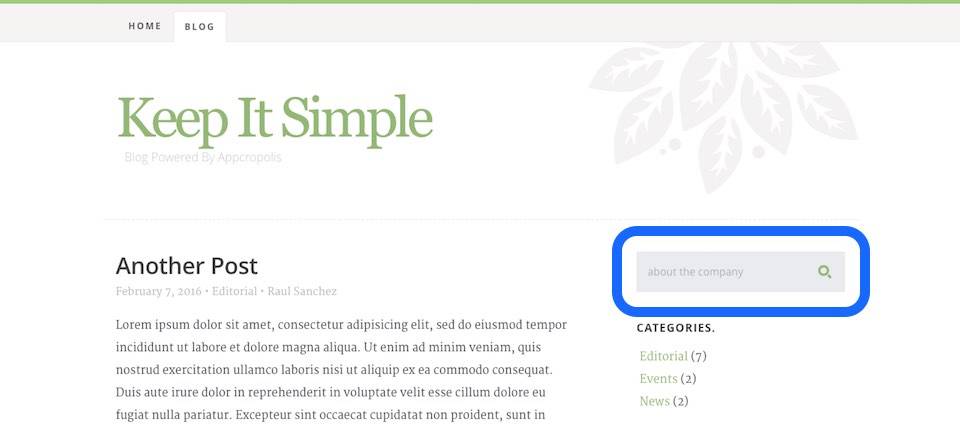
How To Create A Search Form For Your WordPress Blog

Problem

You would like your website visitors to be able to search for content in your website.

Solution

If you are building a blog, you certainly will like to allow your website visitors to search for blog posts. If that is the case you can add a simple form that will allow you visitors to enter a search term and get a list of posts that contains that keyword or term. The code below show how to define a input field with an id and name “s“, which by default is the variable WordPress expect to perform a search operation.

Example

Create a simple form that remembers the last search term

<div class="search-box">
    <h3>Search</h3>
    <form action="/" method="GET">
        <input 
            type="text" 
            id="s" 
            name="s" 
            value="{{if $smarty.get.s}}{{$smarty.get.s}}{{/if}}" 
            placeholder="{{if $smarty.get.s}}{{$smarty.get.s}}{{else}}Search for articles{{/if}}" 
            class="text-search">
        <input type="submit" value="" class="submit-search">
    </form>
</div>


Conclusion

The action of the form is set to the root (“/“), which will assure that the request will be capture by WordPress. Also notices that the value of the search text input field will be “empty” unless the variable “s” is in the page URL. This will allow render the last search term in case the result is empty, the visitor can modify his or her search term without having type the entire term.

Embedding Google Maps

TODO: Embedding Google Maps is as simple as pasting the IFRAME for the map. However, be aware that when scrolling over the page, the IFRAME of the map will capture the mouse scroll event, preventing the page from scrolling.

To overcome this issue, you should use the Maps Javascript API instead. If you choose to use the IFRAME implementation, you can add the code below to overcome the mouser trap issue:


HTML

<section id="content">
	<div class="map" id="overlay">
        <iframe  id="map" src="https://www.google.com/maps/embed?pb=!1m18!1m12!1m3!1d3118.943810333741!2d-90.40780471547198!3d38.581141747979544!2m3!1f0!2f0!3f0!3m2!1i1024!2i768!4f13.1!3m3!1m2!1s0x87d8cc31754abc77%3A0xd633e3938b87c432!2s101+W+Argonne+Dr+%23205%2C+Kirkwood%2C+MO+63122!5e0!3m2!1sen!2sus!4v1458332252466" frameborder="0" style="border:0" allowfullscreen></iframe>
    </div>
</section>


CSS

.scrolloff {
    pointer-events: none;
}


Javascript

$(document).ready(function () {

    $('#map').addClass('scrolloff');                // set the mouse events to none when doc is ready
    
    $('#overlay').on("mouseup",function(){          // lock it when mouse up
        $('#map').addClass('scrolloff'); 
        //somehow the mouseup event doesn't get call...
    });
    $('#overlay').on("mousedown",function(){        // when mouse down, set the mouse events free
        $('#map').removeClass('scrolloff');
    });

    $("#map").mouseleave(function () {              // becuase the mouse up doesn't work... 
        $('#map').addClass('scrolloff');            // set the pointer events to none when mouse leaves the map area
                                                    // or you can do it on some other event
    });
    
});


How to Show Adjacent Posts

TODO:

When shown a single post, you may want to show link to other articles at the end of the post. This is a very common practice to improve user experience, so visitors can continue reading other articles without having to go back to the main blog page, or to other archive pages. If a user cam directly to a post, show the adjacent post is a good option to show visitors other articles that might be interesting as well.


<!--adjacent posts-->
{{post show="next" assign_to="next"}} 
{{post show="previous" assign_to="previous"}}
<section class="row">
    <div class="next col-md-6">
        {{if $next.data.post_permalink}}
        <a class="" rel="next" href="{{$next.data.post_permalink}}">
            <div>Next Article<br/>
            {{if $next.data.post_thumbnail}}
            <img src="{{$next.data.post_thumbnail}}" width="80">
            {{else}}
             <img src="http://placehold.it/80x80" width="80">
            {{/if}}
            </div> {{$next.data.post_title}}
        </a>
        {{/if}}
    </div>
    
    <div class="prev text-right col-md-6">
        {{if $previous.data.post_permalink}}
        <a class="" rel="prev" href="{{$previous.data.post_permalink}}">
            <div>Previous Article<br/>
            {{if $previous.data.post_thumbnail}}
            <img src="{{$previous.data.post_thumbnail}}" width="80">
            {{else}}
             <img src="http://placehold.it/80x80" width="80">
            {{/if}}
            </div> {{$previous.data.post_title}}</a>
        {{/if}}
    </div>
</section><!--/adjacent posts-->